
Skip to content
Menu
Smartttips Smartttips
  • Home
  • About Us
    • Privacy Policy
  • Web Tips
    • PHP Tips
      • CodeIgniter
      • Yii Framework
      • SocialEngine
      • zendframework
      • SQL
    • jQuery
    • CSS
    • Internet
    • Google
    • whatsApp
    • Soma Messenger
    • Useful Sites
  • General Tips
    • Top 10 Lists
    • Onam wishes and Greetings
    • Travel and Tourism
  • Free Web Tools
    • English To Malayalam Converter
    • Malayalam To English Converter
    • English To Tamil Converter
    • Manglish To Malayalam Converter
    • Other Free Web Tools
  • Jobs
  • Contact
Smartttips Smartttips
safe browsing in chrome

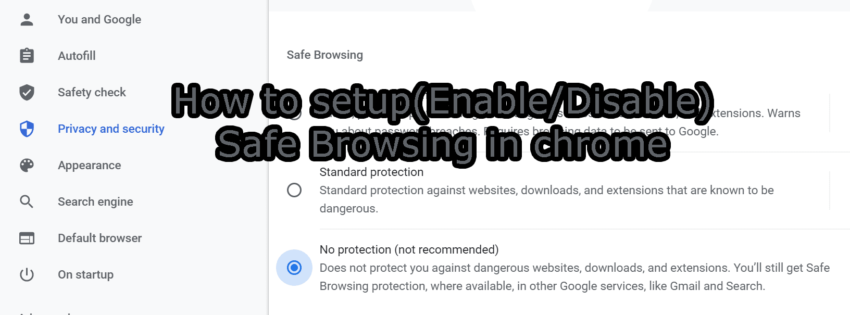
How to setup(Enable/Disable) safe browsing in chrome

Posted on June 8, 2022June 8, 2022 by smarttips

Let’s see how to set up (Enable/Disable) safe browsing in chrome. Of late, there are millions of websites available on the internet for users all around the world. These websites are categorized into different types as per their overall requirements and offer various services to the users. While going through these websites, you should be careful with the malware and virus which may harm your computer or device you are using it. It is highly vital to follow some safety precautions and focus on safe browsing to be on the safer side. Safe browsing is a security service given to chrome users by Google which helps in detecting and warning its users from various harmful websites.

If you are neglecting safe browsing, then you would end up regretting it. You may lose your vital data or get malware on your device. To get rid of these entire traumas, you need to focus on setting up safe browsing in Chrome so that you can start browsing without any hassle for sure. Here you would come to know the important steps which you can follow to enable or disable safe browsing in your chrome browser.

Steps to follow for Enabling Safe browsing

  1. The first step is to go through the settings and choose Privacy & Security option
  2. Now you need to click on the Security option
  3. After clicking on Security, you will see the level of “Safe Browsing” you would like to use. The level will include Enhanced protection, standard protection, and no protection.
  4. Choose either Enhanced protection or standard protection and enable safe browsing on your Chrome

Steps to follow for Disabling Safe browsing in Chrome

  1. The first step is to go through the settings and choose Privacy & Security option
  2. Now you need to click on the Security option
  3. After clicking on Security, you will see the level of “Safe Browsing” you would like to use. The level will include Enhanced protection, standard protection, and no protection.
  4. To disable Safe browsing, you need to choose no protection and it will be done for sure.

It is easy to bypass or completely disable the safe browsing function on Google Chrome but it is not advisable for everyone. If you disable it and want to enable it again, then you should not worry about it as you can enable it by using the same steps easily without any issues at all. Make sure you are giving more importance to safe browsing as it will give you a warning about risky sites and various extensions. Also, you will get a warning regarding password breaches and also message if the file you are going to download is fatal for your computer. By disabling it on your Chrome, you are just putting yourself at risk which is highly not better for the safety of your information and device. Finally, you are educated enough about safe browsing and how you can set up on Google Chrome. Just set it up now and start browsing safely.


Post Views: 1,219

Leave a Reply Cancel reply

Your email address will not be published. Required fields are marked *

Type to Search

Popular Posts

  • Find Vehicle ownership Details in Kerala-Through vahan Online
  • Free Online Tools for Web Statistics
  • PhpMyAdmin Login error – Login without a password is forbidden
  • Increase PHP Script Execution Time in zendframework ?
  • Umm Al Quawain Zoo-The Zoo Wildlife Park-Zoo In UAE

Categories

  • Android
  • Apple
  • Automobile
  • Banking
  • Bevco
  • BevQ App
  • Business
  • CodeIgniter
  • Computer
  • Cricket-IPL-2020
  • CSS
  • Database
  • Design
  • Digital Marketing
  • Digital marketing jobs
  • Du
  • Easy Malayalam Typing
  • Entertrainment
  • Etisalat
  • Facebook
  • Famous Birthdays
  • FIFA World Cup Live Streaming
  • Food & restaurants
  • Free Web Statistics Tools
  • G K
  • Games
  • General
  • git
  • GK
  • Google
  • Hardware
  • Health
  • Huawei
  • Instagram
  • Internet
  • iOS
  • iPad
  • iPhone
  • Java
  • javaScript
  • Jobs
  • jQuery
  • Kissan Card India
  • lifestyle
  • LiFi
  • Linux
  • Make in India
  • Mobile Phones
  • Movies
  • Ms Excel
  • Networking
  • News
  • Nodejs Framework
  • opencart
  • Opensource
  • Others
  • Outlook
  • photography
  • Photoshop Tips
  • PHP
  • PHP Project Ideas
  • phpMyadmin
  • Politics
  • PUBGMOBILE
  • SEO
  • Server
  • SMO
  • SocialEngine
  • Softwares
  • Soma Messenger
  • Sports
  • SQL
  • Technology
  • Telecom
  • Top 10 Lists
  • Travel and Tourism
  • UAE Directory
  • Uncategorized
  • Useful Sites
  • Vechicles
  • Videos
  • Web Designer
  • Web Tips
  • whatsApp
  • WiFi
  • Windows
  • windows 10
  • windows 11
  • wordpress
  • World
  • Yii Framework
  • youtube
  • zendframework

smart Tags

Android apache Baahubali baahubali releasing date cinima CodeIgniter config charset and UTF-8 Codex content css data usage edge case elementum Facebook famous birthdays Fast youTube video downloading featured image General Knowledge google Google chrome how to lose weight fast with exercise how to lose weight fast without exercise how to lose weight in 7 days HTML Color Codes iconv() detect illegal char in input image iOS iPad javascript jQuery Kerala Maecenas Microsoft Excel microsoft windows 10 Movies Mysql PHP php job vacancy php zend framework SocialEngine SQL Commands sundar pichai template ubuntu web tips zend framewrok
©2026 Smartttips | Powered by Superb Themes
We use cookies to ensure that we give you the best experience on our website. If you continue to use this site we will assume that you are happy with it.